Create a template
Write a WhatsApp template with a live preview and submit it to Meta.
- Open Templates and click New template.
- Enter a Name using lowercase letters and underscores, for example
order_confirmation. Choose the Category and Language. - Optional: add a header, either text or an image, video or document.
- Write the body. Click Insert a variable wherever the message needs order or customer details. See Use variables.
- Fill in Example values for each variable. Meta's reviewers see these, so use realistic ones.
- Optional: add a footer, such as Reply STOP to unsubscribe for marketing templates.
- Optional: add buttons. These can be quick replies, or calls to action: Visit website, Call phone number or Copy offer code.
- Check the Preview on the right, then click Submit for review.
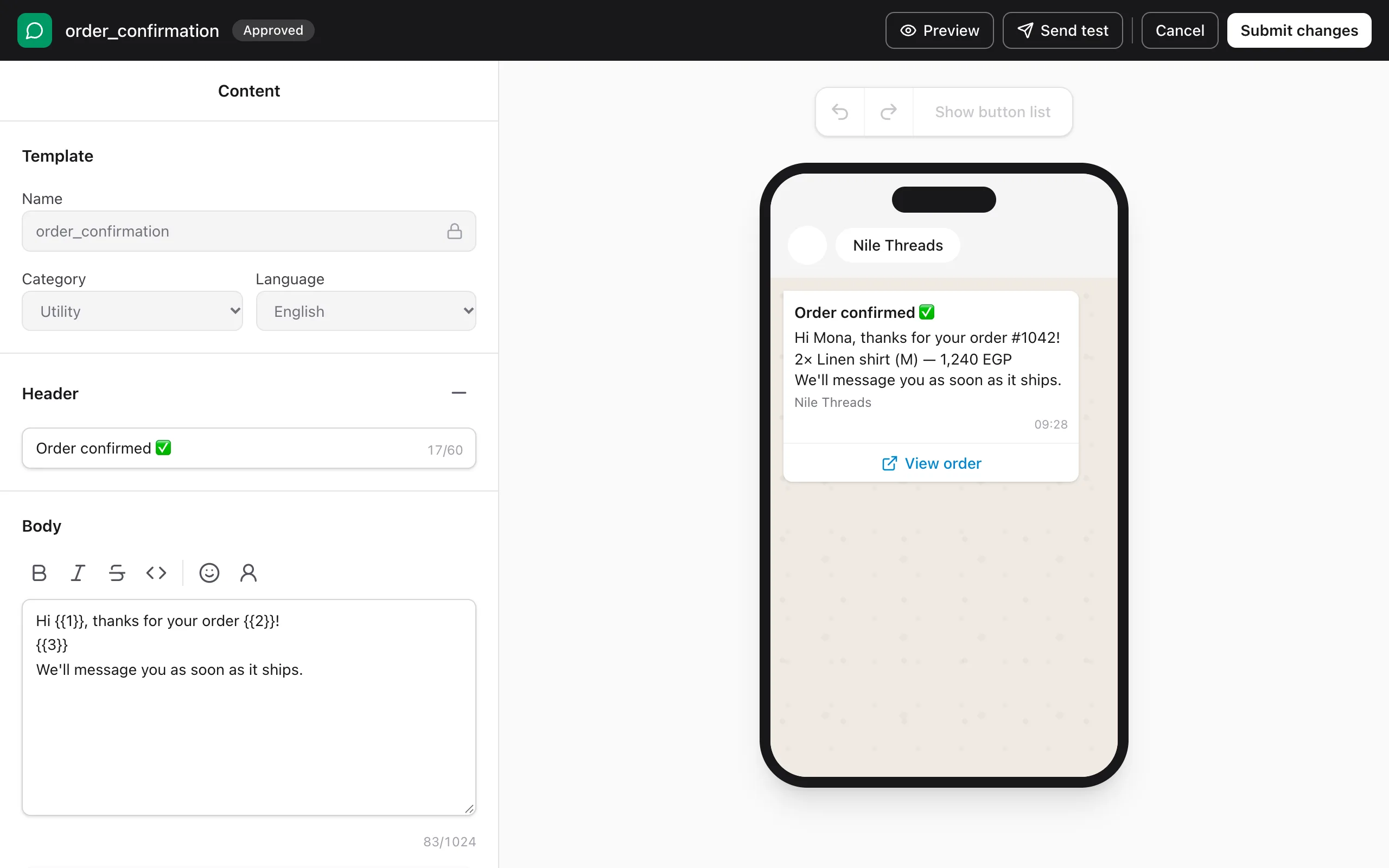
If the editor shows Meta will probably reject this template, fix the points it lists before you submit.
Templates you already have in Meta
Click Sync from Meta on the Templates page to bring in templates you created in WhatsApp Manager.
Editing an approved template
Edit it and click Submit changes. Meta reviews it again. An approved template can be edited once a day, up to 10 times a month.
Still stuck? Contact us — tell us what you tried and what you see, and we'll help you finish the setup.