Send your first message
Try a flow on your own phone before real customers receive anything.
Test mode sends every message to your own number, so you can try flows without messaging customers.
1. Turn on test mode
- Open Settings and find Test mode.
- Enter your own WhatsApp number in Test number, with the country code, and save.
2. Turn on a flow
- Open Flows and click Create flow, or open one of the flows already in your list.
- Make sure its Send WhatsApp template step uses an approved template. See Create a template.
- Switch the flow from Draft to Live and click Save.
3. Send a test event
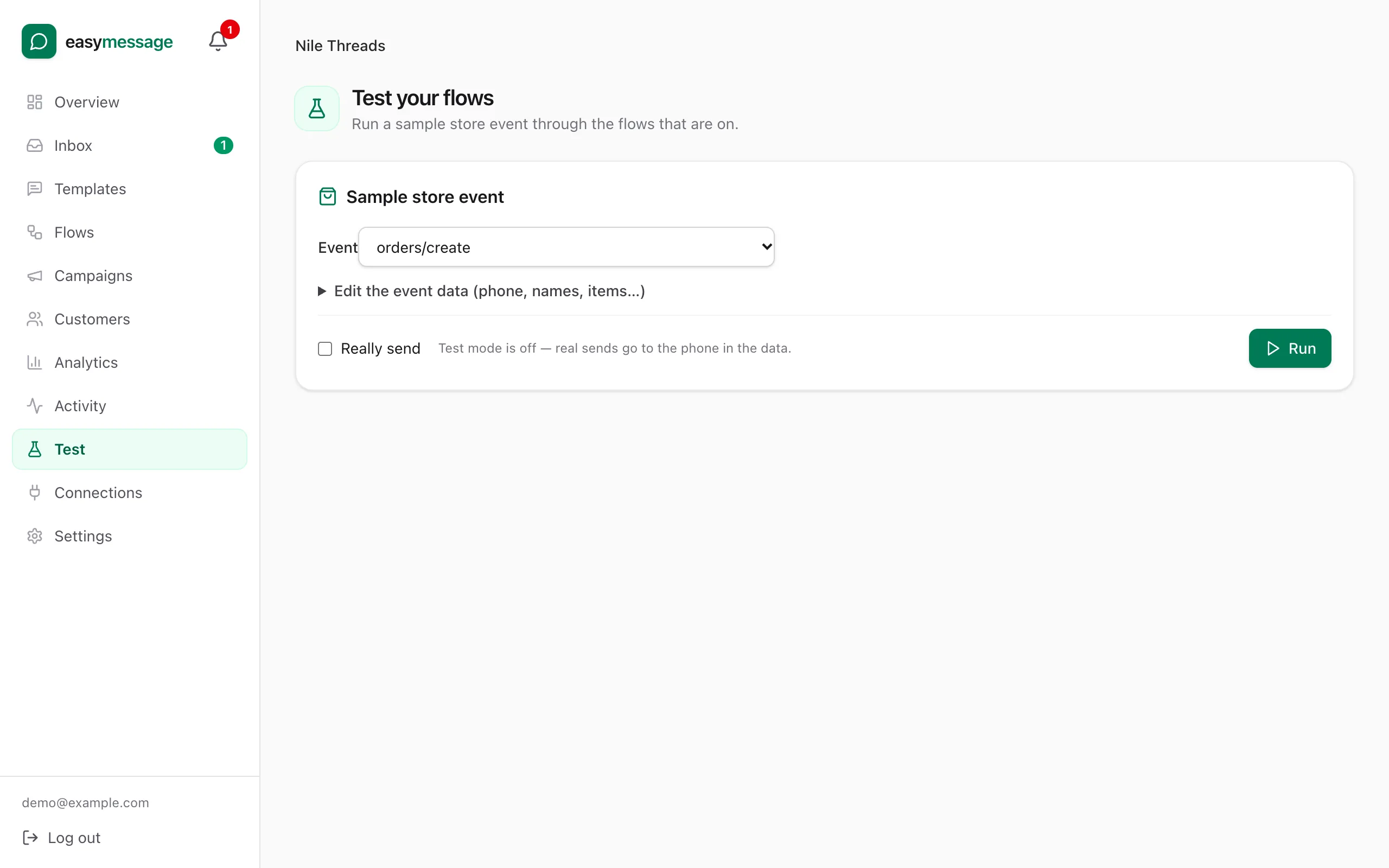
- Open Test. Under Sample store event, choose the Event, for example Order placed.
- Optional: click Edit the event data to change the phone number, names or items.
- Run it. easymessage shows which flows reacted and what was sent, and the message arrives on your test number.
You can also send one template straight away from Templates → (a template) → Send test.
4. Reply from the Inbox
Reply to the message from your phone. Your reply appears in Inbox, where you can answer with text, emoji, photos, files or a voice note. You can reply freely for 24 hours after the customer's last message.
When you're happy, turn test mode off so messages go to your customers.
Still stuck? Contact us — tell us what you tried and what you see, and we'll help you finish the setup.